
 Share
 Tweet
 Share
 Share
 Share
Vocaroo - Free Online Voice Recorder, Audio Upload & Instant Link Sharing
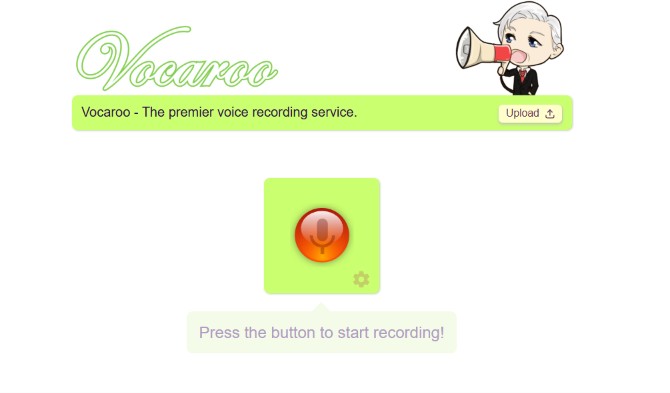
Vocaroo is the web's premier free online voice recorder, engineered for instant browser-based audio capture, effortless file uploads, and frictionless link sharing. While traditional digital audio workstations and cloud storage drives bury basic voice recording behind account logins, software installers, and complex multi-track timelines, Vocaroo strips audio sharing down to a single red button. Within seconds of opening the page, anyone with a microphone can record spoken feedback, pronunciation guides, podcast snippets, or quick voice memos and immediately distribute them via a compact URL, downloadable MP3, embeddable HTML player, or scannable QR code.
Since its launch in 2007, Vocaroo has become an indispensable daily utility for teachers, language learners, Reddit communities, customer support teams, remote workers, and musicians. Built on lightweight HTML5 Web Audio API architecture, the platform runs smoothly across Windows, macOS, Linux, ChromeOS, iOS, and Android without plugins or registration barriers. This complete guide explores every capability of the Vocaroo voice recorder—from step-by-step recording and audio uploading workflows to microphone noise-suppression settings, link expiration rules, privacy controls, and acoustic optimization tips.
Understanding Vocaroo: Why Simplicity Wins in Online Audio
Modern communication relies heavily on asynchronous voice notes, yet sending a thirty-second audio clip between different platforms often creates unnecessary technical headaches. Recording a voice memo on an iPhone produces an .m4a file that may not preview natively inside certain desktop browsers, while attaching raw .wav files to emails or forum threads frequently triggers file-size limits.
What is Vocaroo? Vocaroo is a zero-registration, cloud-hosted browser voice recorder and audio hosting service. It captures live microphone input (or accepts pre-recorded audio uploads), encodes the sound into a universally compatible web stream, and generates a permanent-style short URL alongside direct MP3 download and QR code options.
By acting as both a browser capture tool and an instant streaming host, Vocaroo eliminates file-format mismatches entirely. Recipients never have to download an unknown attachment to hear your voice—they simply click your Vocaroo link and press play on any phone, tablet, or computer.
Core Features of the Vocaroo Online Voice Recorder
Despite its famously minimalist interface, Vocaroo packs practical audio engineering and sharing tools beneath the surface to support everyday communication and creative workflows:
1. One-Click Browser Microphone Capture
Pressing the central red microphone button immediately triggers your browser's native audio input permission prompt and begins capturing sound. During recording, a live timer and visual pulse confirm active signal capture, while an integrated Pause / Resume toggle lets you gather your thoughts mid-sentence without starting over from scratch.
2. Built-In Background Noise Suppression & Auto-Gain Toggle
Clicking the subtle settings icon next to the record button reveals a crucial audio control: Remove background noise (enabled by default). When active, Vocaroo leverages WebRTC acoustic echo cancellation and noise suppression to filter out laptop fans, keyboard clicks, and room hum—making spoken voice notes crisp and intelligible. When recording singing, acoustic instruments, or ambient soundscapes, unchecking this box disables browser compression and preserves natural dynamic range.
3. Existing Audio File Upload (MP3, WAV, OGG, FLAC & M4A)
Already recorded your audio using Audacity, GarageBand, OBS, or a smartphone voice app? Clicking the Upload button in the top-right corner lets you upload pre-existing audio files directly to Vocaroo. Once uploaded, your file receives the exact same instant shareable URL, QR code, and embeddable web player as a live browser recording.
4. Instant Multi-Channel Sharing Suite
After clicking Save & Share, Vocaroo generates a unique short link (such as voca.ro/1a2b3c4d5e6f) paired with dedicated sharing utilities:
- Direct Short URL Copy: One-click clipboard copy ready for Reddit comments, Discord chats, Slack channels, emails, or SMS messages.
- Direct MP3 Download: Export a clean, lightweight
.mp3file directly to your local hard drive or mobile storage for permanent offline archiving. - Scannable QR Code Generator: Instantly renders a high-contrast QR code image that teachers can print on worksheets or display on classroom projectors so students can scan and listen on tablets or phones.
- Embeddable HTML Widget: Generates a ready-to-paste
<iframe>snippet so bloggers, educators, and web developers can embed a compact Vocaroo audio player inside WordPress, Canvas LMS, Moodle, or custom websites. - Social Media Quick-Share: Native one-click sharing buttons for WhatsApp, Reddit, X (Twitter), Facebook, and email clients.
How to Record & Share Audio on Vocaroo: Step-by-Step Guide
Creating and distributing a voice recording on Vocaroo takes less than fifteen seconds from start to finish. Follow this standardized workflow for reliable results:
- Verify Your Microphone Input: Connect your headset, USB microphone, or internal laptop mic. Open the Vocaroo homepage in Chrome, Edge, Firefox, or Safari.
- Adjust Noise Filtering (Optional): Click the small settings icon beside the record button. Keep Remove background noise checked for speech, or uncheck it if recording music or singing.
- Start Recording: Click the large red microphone icon. When your browser asks "Allow microphone access?", select Allow. Speak clearly at a consistent distance (6 to 8 inches from the mic).
- Pause or Finish Capture: Click the pause icon if you need a break mid-recording, or click the red square Stop button once finished.
- Preview Your Audio: Press the green Play button to verify volume levels, clarity, and pacing. If you want a cleaner take, click the circular Re-record arrow to discard the draft and record again.
- Save, Share, or Download: Click Save & Share to publish your audio to the cloud. Copy your short
voca.rolink, generate a QR code, or click Download to save an MP3 backup locally.
Technical Specifications & Supported Audio Formats
Understanding Vocaroo's technical parameters ensures smooth uploads, predictable file sizes, and compatibility across different operating systems and school or corporate networks:
| Technical Parameter | Vocaroo Specification | Practical User Recommendation |
|---|---|---|
| Account / Registration | None required (100% anonymous access) | Bookmark your generated link or download the MP3 if you need future access. |
| Default Export Format | MP3 (MPEG Audio Layer III) | Universally playable on Windows, macOS, iOS, Android, and LMS platforms. |
| Supported Upload Formats | MP3, WAV, OGG, FLAC, M4A, AAC, WebM | Convert exotic formats (like WMA or AIFF) to MP3 or WAV before uploading. |
| Maximum Upload Size | Up to 50 MB per audio file | A 50 MB MP3 at 128 kbps holds roughly 50+ minutes of continuous audio. |
| Live Recording Duration | No fixed short cap (RAM-dependent) | Ideal for 10-second voice notes up to 60-minute lectures; save MP3s after long sessions. |
| Link Lifespan / Retention | Temporary cloud hosting (typically 3–12+ months) | Never use Vocaroo links as your sole permanent backup; always save local MP3 copies. |
| Immediate Deletion Control | Built-in Delete Now button post-save | Save or bookmark the deletion confirmation before closing your browser session. |
Top 7 Real-World Use Cases for Vocaroo
Because Vocaroo removes login friction for both creators and listeners, it solves communication bottlenecks across dozens of industries and communities:
1. Language Learning & Pronunciation Coaching
Language teachers and students rely heavily on Vocaroo for speaking assessments and accent feedback. Instructors embed a Vocaroo player or QR code directly onto vocabulary worksheets so learners can hear native pronunciation, while students submit spoken homework replies via a simple URL in Google Classroom or Canvas without fighting heavy video uploads.
2. Faster Teacher Grading & Essay Feedback
Typing detailed written feedback on thirty student essays can take hours. Educators use Vocaroo to record two-minute personalized audio critiques—conveying tone, encouragement, and nuanced suggestions far faster than typing—and paste the resulting link directly into grading rubrics.
3. Reddit, Discord & Online Forum Voice Replies
Text-only platforms like Reddit do not allow native voice comments inside threads. Users across singing critique forums (r/singing), accent guessing communities (r/JudgeMyAccent), and voice-acting groups use Vocaroo as the universal standard for sharing instant, anonymous audio clips.
4. Remote Team Asynchronous Updates & Bug Reports
Instead of scheduling a fifteen-minute video call to explain a complex workflow or UI bug, remote teammates record a concise 45-second Vocaroo voice note and drop the link into Slack, Trello, Jira, or Notion.
5. QR Code Audio Guides for Classrooms, Museums & Greeting Cards
Using Vocaroo's instant QR code generator, teachers create interactive "listening stations" around classrooms, museum curators attach spoken exhibit notes to display plaques, and families print custom voice-message QR codes inside birthday cards and photo albums.
6. Quick Songwriting Demos & Musical Idea Capture
Songwriters and beatmakers use Vocaroo—with noise suppression switched off—to capture sudden vocal melodies, chord progressions, or lyric ideas on the spot and text the link immediately to bandmates or producers.
7. Accessibility & Screen-Reader Friendly Instructions
Providing spoken audio summaries alongside written instructions helps neurodivergent readers, young learners, and visually impaired users absorb complex directions effortlessly.
How to Optimize Microphone Quality for Crystal-Clear Vocaroo Recordings
Even a basic laptop microphone or smartphone headset can produce broadcast-grade clarity on Vocaroo when paired with proper acoustic technique:
- Maintain the 6-Inch Rule: Position your microphone roughly one hand-span (6 to 8 inches) from your mouth, angled slightly off-axis (30 degrees to the side) to prevent harsh "popping" sounds on P and B consonants.
- Tame Room Echo: Hard bare walls, tile floors, and empty rooms bounce sound waves back into your mic. Recording near curtains, bookshelves, carpeted floors, or soft furnishings dramatically reduces hollow room reverb.
- Silence Background Fans & Notifications: Turn off desk fans, air conditioners, and browser notification chimes before pressing record.
- Match Noise Suppression to Your Content: Keep Remove background noise enabled for spoken voice notes in noisy environments, but turn it off when recording singing, acoustic instruments, or subtle vocal nuances so quiet notes aren't clipped.
- Check OS Input Volume Levels: If your Vocaroo playback sounds overly quiet or distorted, open your Windows Sound Settings or macOS Audio MIDI Setup and set your microphone input gain between 75% and 85%.
Privacy, Security & Link Management Best Practices
Because Vocaroo operates without user accounts or personal profiles, understanding how privacy and file retention work protects sensitive recordings:
- Security Through Unlisted URLs: Vocaroo links are not listed in a public searchable directory—only individuals who possess your exact generated URL or QR code can access and play the audio. However, anyone with the link can forward it, so avoid recording confidential passwords, financial details, or private medical records.
- Using the Instant Delete Feature: Right after saving a recording, Vocaroo displays a Delete Now link below the share icons. If you recorded a test clip or shared a temporary message that you want removed immediately, click Delete Now before closing the tab.
- Archiving Important Recordings Locally: Because Vocaroo is designed for convenient temporary hosting rather than permanent cloud storage, links automatically expire after extended periods of inactivity. Always click Download to save an MP3 copy if you plan to reuse the audio next semester or next year.
Vocaroo vs. Other Online Voice Recorders
Comparing Vocaroo against alternative browser audio recorders highlights why its zero-friction hosting model remains unmatched for fast sharing:
| Feature / Capability | Vocaroo | Standard Local Browser Recorders | Cloud Drive Audio Uploads |
|---|---|---|---|
| Account / Login Required | No (Instant access) | Usually No | Yes (Google/Dropbox login required) |
| Instant Shareable Link Hosting | Yes (Built-in short URL) | No (Local file download only) | Yes (Requires manual permission toggling) |
| One-Click QR Code Generation | Yes (Native button) | No | No (Requires third-party QR tool) |
| Audio File Upload Support | Yes (MP3, WAV, OGG, FLAC, M4A) | Rarely | Yes |
| HTML Website Embed Player | Yes (Instant iframe code) | No | Complex / Permission-restricted |
| Permanent Lifetime Storage | No (Temporary hosting; download MP3) | Yes (Stored on your local drive) | Yes (Until storage quota fills) |
Troubleshooting Common Vocaroo Microphone & Playback Issues
If your browser blocks microphone capture or a Vocaroo recording fails to play back cleanly, use this quick diagnostic checklist:
| Common Issue | Root Cause | Step-by-Step Solution |
|---|---|---|
| "Microphone Access Denied" Error | Browser permissions blocked or dismissed previously. | Click the padlock or site-settings icon in your browser address bar, set Microphone to Allow, and refresh the page. |
| Recording Has Zero Sound / Flat Audio | Wrong input device selected (e.g., muted monitor mic). | Open browser Audio/Media settings or OS Sound Control Panel and set your active headset or USB mic as the default input device. |
| Music or Singing Sounds Muffled | Browser noise suppression filtering out sustained notes. | Click the gear icon beside Vocaroo's record button and uncheck Remove background noise before recording. |
| Vocaroo Not Working in In-App Browsers | Embedded browsers (inside Instagram, TikTok, or Facebook apps) restrict mic APIs. | Tap the three-dot menu and select Open in Safari or Open in Chrome to record normally. |
| Old Link Shows "Media Not Found" | The temporary hosting window expired or the creator deleted the clip. | Ask the sender for an updated link or an exported MP3 copy of the recording. |
Frequently Asked Questions About Vocaroo (FAQs)
Is Vocaroo completely free to use without creating an account?
Yes, 100% free. Vocaroo requires no account registration, email address, password, or paid subscription. You can record unlimited voice clips, upload audio files, generate QR codes, and download MP3s immediately in your browser.
How long do Vocaroo links last before they expire?
Typically several months to over a year. Vocaroo provides temporary cloud hosting rather than permanent archival storage, and inactive links are periodically cleared to free server space. Always download the MP3 file to your device if you want to keep a recording permanently.
What is the maximum recording length and upload size on Vocaroo?
Live browser recordings have no strict short timer and can easily capture lectures or interviews exceeding an hour, limited only by your device's available browser memory. For pre-recorded audio uploads, Vocaroo supports files up to 50 MB in MP3, WAV, OGG, FLAC, and M4A formats.
Can I delete a Vocaroo recording after I create it?
Yes. Immediately after clicking Save & Share, look beneath the sharing buttons for the Delete Now option. Clicking it permanently removes the audio file from Vocaroo's servers so the link stops working immediately.
Does Vocaroo work on iPhone, iPad, and Android devices?
Yes. Vocaroo works smoothly inside mobile web browsers such as Safari on iOS/iPadOS and Chrome on Android. For best results, open Vocaroo directly in your main mobile browser rather than inside a social media app's built-in web viewer.
How do I turn off noise cancellation on Vocaroo when recording music?
Uncheck "Remove background noise" in the recorder settings. Click the small settings icon next to the red record button before starting your take and disable noise suppression so singing, guitars, and instruments retain full clarity and dynamic range.
Can I embed a Vocaroo audio player on my website or blog?
Yes. After saving your recording, click the Embed option to copy a lightweight HTML <iframe> code snippet that plays seamlessly inside WordPress blogs, online courses, and custom web pages.
Conclusion: Record, Upload & Share Your Voice in Seconds
Vocaroo proves that web utilities do not need bloated menus, mandatory logins, or subscription tiers to be extraordinarily useful. By combining instant HTML5 microphone capture, multi-format audio uploads, MP3 exports, embeddable players, and QR code generation on a clean, fast-loading page, Vocaroo remains the gold standard for frictionless online voice sharing. Click Start Recording Voice Now, allow microphone access, and share your first voice link in seconds!